Setting up an Enterprise Resource Planning (ERP) platform is one of the most foundational architectural milestones an organization undertakes. Configured correctly, an ERP consolidates fragmented spreadsheets, automates financial ledgers, tightens inventory controls, and provides leadership with real-time operational visibility. Misconfigured, it creates data silos, ledger reconciliation errors, and operational bottlenecks. For background on the wider category before you configure anything, read how open-source ERP software works and where it fits.
The Frappe & ERPNext deployment framework is globally recognized as the leading 100% open-source enterprise suite. Unlike closed proprietary software, ERPNext provides enterprise-grade modularity across accounting, supply chain, CRM, HRMS, and manufacturing without prohibitive per-user license fees. Teams preparing for their first deployment should pair this technical setup manual with our practical guide on ERPNext implementation best practices.
Direct Answer: How Do You Set Up ERPNext for a Business?
To set up ERPNext successfully, configure modules in a strict dependency sequence: 1) Host & complete the Setup Wizard, 2) Create the Company Master and Fiscal Year, 3) Establish the Chart of Accounts & post Opening Balances, 4) Define Tax Rules & Currencies, 5) Structure Item Masters & Warehouses, 6) Configure Role-Based Permissions (RBAC), and 7) Execute User Acceptance Testing (UAT) before transactional cutover.
Master ERPNext Setup Roadmap (11 Essential Milestones)
Because ERPNext shares a unified MariaDB database where transactional ledgers intersect automatically, setup sequence is critical. Configuring sales orders before setting default receivable accounts will generate posting errors. Follow this verified 11-step implementation roadmap:
| Step | Configuration Area | Core Focus & Mandatory Settings | System Dependency |
|---|---|---|---|
| Step 1 | Hosting & Setup Wizard | Country, Language, Currency, Timezone, Industry Domain | Prerequisite for all modules |
| Step 2 | Company Master | Legal entity name, Abbreviation, Default Currency, Country | Generates Account tree & Cost Centers |
| Step 3 | Fiscal Year Setup | Financial calendar dates, active closing periods | Required for all GL transactions |
| Step 4 | Chart of Accounts (CoA) | Standard vs Country template, Opening Balance entries | Financial ledger integrity |
| Step 5 | Taxes & Currencies | Sales/Purchase Tax Templates, NBR VAT, Multi-currency rates | Accurate invoice tax computation |
| Step 6 | Warehouses & Items | Item groups, UOM conversions, FIFO valuation, Barcodes | Inventory ledger & stock balance |
| Step 7 | User Roles & Permissions | Role Profiles, Document restrictions, Field-level masking | Data security & audit trails |
| Step 8 | Buying & Selling Cycles | Customer/Supplier groups, Price lists, Credit limits | Order-to-Cash & Procure-to-Pay |
| Step 9 | HR & Payroll Setup | Designations, Attendance, Salary components, GL posting | Automated payroll ledger sync |
| Step 10 | Manufacturing & Projects | Multi-level BOMs, Workstations, Routing (Optional) | Production planning & job cards |
| Step 11 | Testing & Go-Live Cutover | Master data import, Parallel run, Cutover journal entries | Operational go-live milestone |
Step 1: Initial Deployment & Setup Wizard
ERPNext can be deployed via three primary architectures:
- Managed Frappe Cloud: High-availability managed hosting with automated backups, 1-click updates, and SSL certificates. Recommended for small to mid-sized businesses lacking in-house Linux sysadmins.
- Self-Hosted Linux (Ubuntu LTS + Docker / Frappe Bench): Deployed on private infrastructure (AWS, DigitalOcean, or local on-premise servers). Delivers complete data sovereignty and zero server fees, requiring dedicated DevOps maintenance.
- Enterprise Partner Hosted: Managed private cloud with tailored performance tuning, Redis caching, and continuous SLAs from certified partners like Invento Software Limited.
Upon your first login as Administrator, the First-Time Setup Wizard prompts you for essential regional parameters: Country, Language, Currency, Time Zone, and Industry. Selecting your country correctly is critical because ERPNext uses this selection to automatically generate regional tax charts and statutory accounting templates.
Step 2: Company Setup (Path, Navigation & Mandatory Fields)
The Company DocType is the root node of your entire ERP environment. Everything from accounts, cost centers, warehouses, and tax records is partitioned by Company.
Exact Navigation Path & Access
- Awesome Bar: Press Ctrl + K (or Cmd + K on Mac), type
Company List, and press Enter. Click “Add Company”. - Sidebar Menu Path:
Home > Accounting > Company.
Mandatory Configuration Fields Matrix
| Field Name | Field Type | Technical Function & Best Practice |
|---|---|---|
| Company Name | Data (Mandatory) | The official legal name of your entity (e.g., Invento Software Ltd). |
| Abbreviation | Data (Mandatory) | A 2–5 letter code (e.g., ISL). Appended as a suffix to all ledger accounts (e.g., 1110 - Cash - ISL). Note: Difficult to change later. |
| Default Currency | Link (Currency) | Base operating currency (e.g., BDT, USD, EUR). All statutory financial reporting converts to this currency. |
| Country | Link (Country) | Determines statutory date formatting, currency decimal places, and default tax compliance rules. |
| Chart of Accounts Template | Select | Choose Standard Template, regional template (e.g., Bangladesh / India / US GAAP), or check Create Custom Chart of Accounts. |
Default Accounts Mapping (Crucial for Automated GL Posting)
Within the Company form under the Accounts Settings tab, you must configure default fallbacks so transactions post without manual ledger selection:
- Default Bank Account: Primary operational checking account for disbursements.
- Default Cash Account: Petty cash ledger for on-hand payments.
- Default Receivable Account: Accounts Receivable (Debtors) ledger for customer invoices.
- Default Payable Account: Accounts Payable (Creditors) ledger for supplier bills.
- Stock Received But Not Billed: Temporary accrual liability ledger required for perpetual inventory tracking.
- Round Off Account: Automatically absorbs minor fractional currency rounding adjustments on invoices.
Step 3: Setting Up Fiscal Years & Financial Periods
Every accounting entry in ERPNext must fall inside an active Fiscal Year. If a financial year is not created or is marked disabled, users cannot submit invoices, payment entries, or journal vouchers.
Exact Navigation Path
- Awesome Bar: Type
Fiscal Year List> Click “Add Fiscal Year”. - Menu Path:
Home > Accounting > Masters > Fiscal Year.
Configuration Fields & Multi-Entity Handling
- Year Name: Enter a recognizable label (e.g.,
2026orFY 2025-26). - Year Start Date & Year End Date: For calendar year businesses, select
01-01-2026to31-12-2026. For Bangladesh tax compliance, fiscal years typically run from01-07-2025to30-06-2026. - Company Table: Assign which companies operate under this financial calendar. Multiple entities can share the same fiscal year.
- Period Closing Voucher: At year-end, run a Period Closing Voucher to transfer net profit/loss into Retained Earnings and lock historical transactions against retrospective tampering.
Step 4: Chart of Accounts & Opening Balances
The Chart of Accounts (CoA) represents the hierarchical tree structure of your general ledger. ERPNext organizes accounts under five standard top-level groups: Application of Funds (Assets), Source of Funds (Liabilities), Equity, Income, and Expense.
Migrating Opening Balances
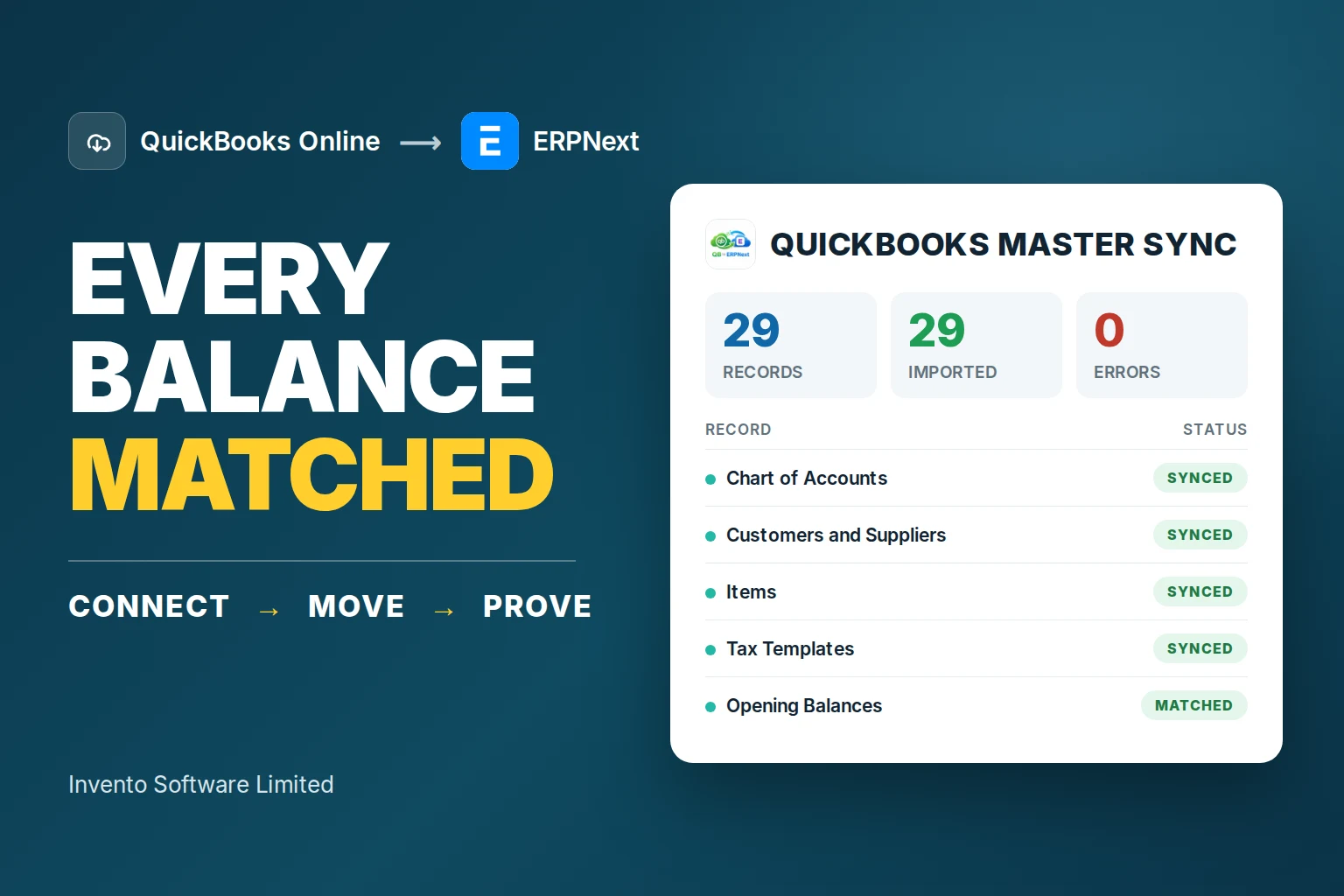
To establish your opening financial position when migrating from legacy systems or QuickBooks:
- Extract Balance Sheet: Pull the verified Trial Balance as of your cutover date.
- Create Opening Journal Entry: Navigate to
Accounting > Journal Entry > Add Journal Entry. Set Entry Type to “Opening Entry”. - Post Asset & Liability Balances: Debit bank, cash, and fixed asset ledgers; credit equity and liabilities. Set the balancing offset account to Temporary Opening Account.
- Post Customer & Supplier Opening Invoices: Enter outstanding receivables and payables through the Opening Invoice Creation Tool so customer aging reports reflect historical debt accurately.
Step 5: Configuring Taxes & Currency Rules
Taxes in ERPNext are configured using Sales and Purchase Tax Templates. These determine how VAT, GST, or local withholding taxes are calculated across line items and posted to the general ledger:
- Item-Specific Tax Rates: Apply variable tax rules based on SKU classifications (e.g., standard 15% VAT on commercial goods vs. 0% exempt on export items).
- Multi-Currency Capabilities: Enable foreign currencies under
Setup > Currency. ERPNext automatically fetches live exchange rates or allows manual currency exchange entries with automatic unrealized currency gain/loss computation. - Bangladesh NBR Integration: For regional VAT compliance, map tax ledgers to generate statutory Mushak 6.3 invoices directly. Learn more in our detailed guide to Bangladesh VAT compliance in ERP systems.
Step 6: Warehouses, Items & Inventory Structure
Your inventory architecture dictates stock valuation and procurement cycles:
- Warehouse Tree: Establish hierarchical warehouse locations under
Stock > Warehouse(e.g.,All Warehouses > Central Hub > Raw Materials > Stores Bay 1). - Item Masters: Create standardized SKUs with Item Code, Item Name, Default Unit of Measure (UOM), and Valuation Method (FIFO or Moving Average).
- Batch & Serial Tracking: Enable serial number tracking for high-value electronics or lot/batch tracking with expiry dates for food, cosmetics, and pharmaceuticals. For comprehensive warehouse architecture, consult our guide to inventory management software.
Step 7: Role-Based Access Control (RBAC) & Security
Protect system integrity by enforcing least-privilege security controls across your workforce:
- Standard Role Profiles: Group standard permissions (e.g., Stock User, Sales Master Manager, Accounts User) into unified Role Profiles for fast employee onboarding.
- Document-Level Restrictions (User Permissions): Restrict regional sales reps so they can only view customers located within their assigned sales territory.
- Field-Level Masking: Protect sensitive data (such as employee base salaries or supplier raw purchase prices) by restricting specific field read/write access to HR Managers or Directors.
Step 8: Sales & Procurement Workflows
Automate your Order-to-Cash and Procure-to-Pay pipelines:
- Sales Pipeline:
Lead > Opportunity > Quotation > Sales Order > Delivery Note > Sales Invoice > Payment Entry. - Procurement Pipeline:
Material Request > Request for Quotation (RFQ) > Supplier Quotation > Purchase Order > Purchase Receipt > Purchase Invoice. - Automated Reorder Triggers: Define dynamic safety stock levels on item warehouses. When stock dips below minimum thresholds, ERPNext drafts Material Requests automatically.
Step 9: HR, Attendance & Payroll Configuration
ERPNext features a comprehensive Human Resource Management System (HRMS):
- Employee Records: Capture department, designation, reporting manager, bank details, and emergency contacts.
- Attendance & Biometrics: Sync biometric fingerprint/facial recognition devices via Frappe API or process automated shift rosters.
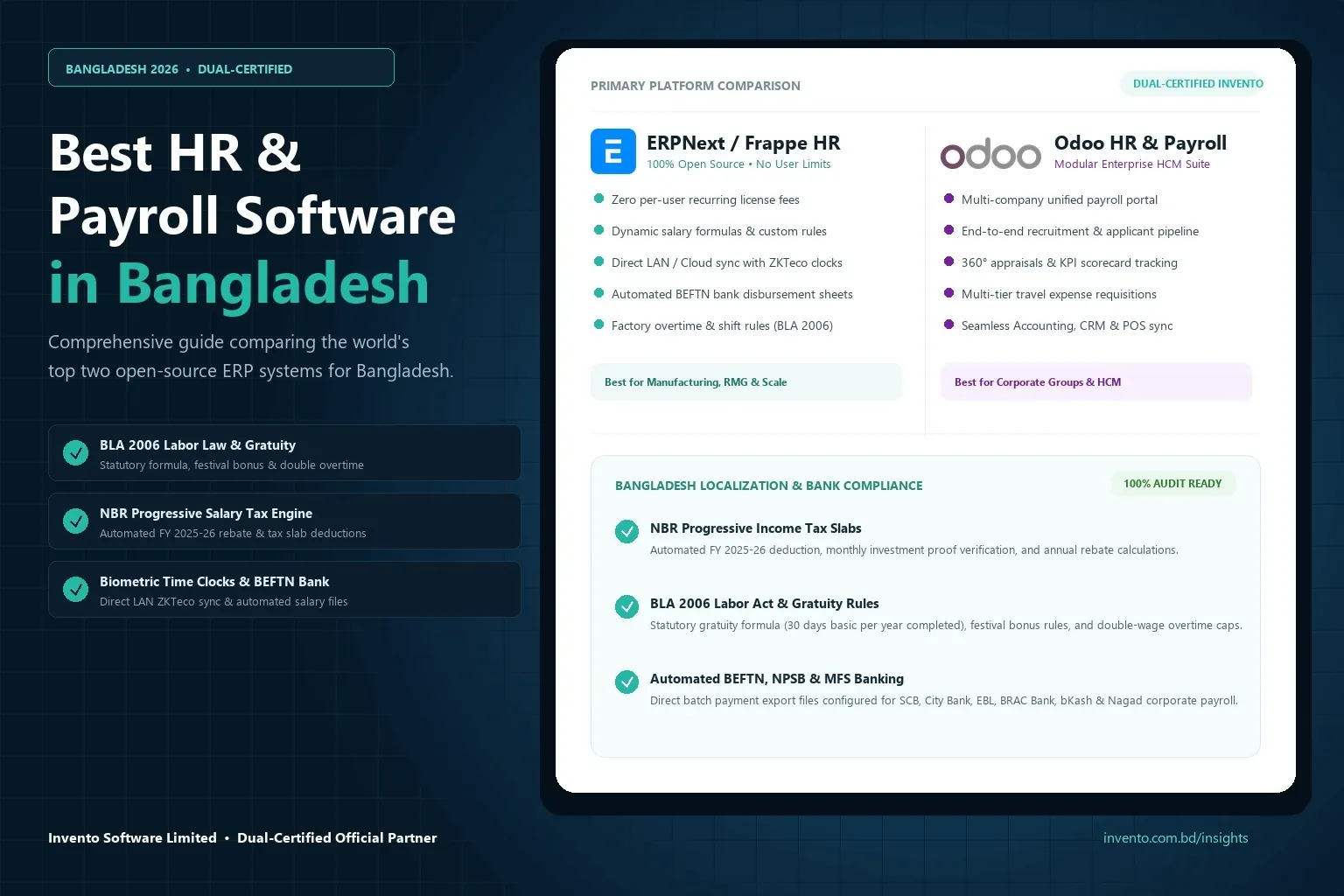
- Salary Structures: Build flexible salary components (Basic, House Rent, Medical, Conveyance, Provident Fund) with automated formula-driven income tax deductions. For in-depth payroll architecture, explore our guide on ERPNext HR and payroll modules.
Step 10: Manufacturing, Projects & Custom Workflows (Optional)
For industrial plants and service agencies, ERPNext extends seamlessly into advanced operational tracking:
- Manufacturing (MRP): Multi-level Bills of Materials (BOM), workstation routing, scrap tracking, and digital shop-floor Job Cards. Compare platforms in our comprehensive report on the best ERP systems for manufacturing.
- Project Management: Gantt charts, timesheets, task milestones, and cost-to-complete profitability analytics.
- No-Code Customization: Add custom fields, automate email alerts, and design validation workflows via Frappe DocType customizations without altering core engine files.
Step 11: User Acceptance Testing (UAT) & Go-Live Cutover
Never cut over directly from configuration to production without structured testing. Follow this 3-stage validation process:
- Sandbox User Acceptance Testing (UAT): Have actual department leads run simulated daily workflows (sales order to dispatch, PO to payment) in a staging site to confirm configurations.
- Data Cleansing & Master Cutover: Freeze legacy systems. Export finalized customer, vendor, and item master CSV templates and import them into the clean production site via Frappe Data Import tool.
- Opening Balance Sign-off: Post final opening trial balance and verify that the balance sheet matches historical certified accounting statements to the cent.
Frequently Asked Questions (FAQs)
How long does an ERPNext setup take for a business?
A standard setup for small to mid-sized businesses typically takes between 4 to 12 weeks, depending on data cleanliness, master record volume, custom workflow requirements, and user training. Using structured Frappe data import templates significantly accelerates cutover timelines.
Can ERPNext handle multiple companies under one system?
Yes. ERPNext natively supports multi-company hierarchies under a single database instance. You can create parent and subsidiary companies, maintain independent Charts of Accounts and Fiscal Years for each entity, and generate consolidated financial statements effortlessly.
What is the difference between Frappe Cloud and self-hosting ERPNext?
Frappe Cloud is a fully managed SaaS infrastructure maintained by Frappe Technologies with automated off-site backups, 1-click upgrades, and performance tuning. Self-hosting installs ERPNext on your own Linux server (Ubuntu via Frappe Bench or Docker), providing 100% control over server architecture but requiring dedicated internal DevOps resources for maintenance and security patches.
Can I migrate historical transactions into ERPNext?
Best practice in ERP implementation is to migrate master records (items, customers, suppliers) and opening account balances / open invoices rather than years of granular historical transactions. Historical ledgers should be archived in your legacy system for audit references.
Need Professional Assistance with Your ERPNext Setup?
Configuring an enterprise ERP requires deep technical acumen and rigorous accounting expertise. As official certified Frappe partners in Bangladesh, Invento Software Limited provides end-to-end ERPNext setup, data migration, custom Frappe app development, and staff training. Explore our ERPNext implementation services in Bangladesh or schedule a free technical discovery call with our certified Frappe engineers today.